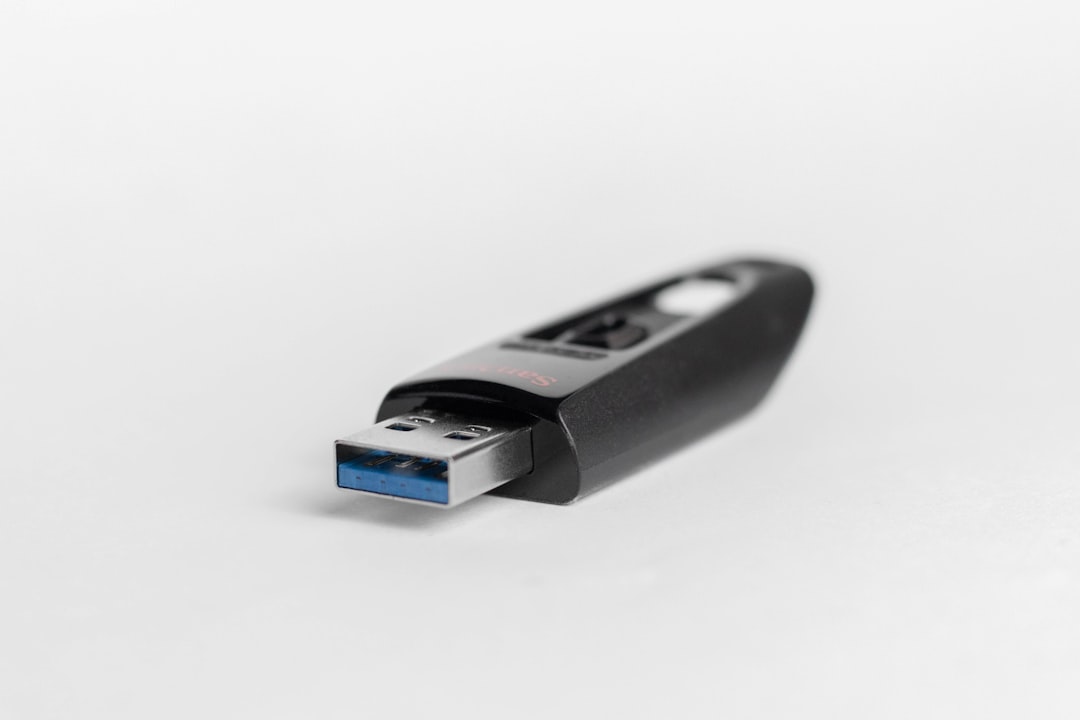
Essential Tips For USB Data Protection
In today’s fast-paced digital world, USB sticks have become essential companions for data storage and transfer. Yet, many users underestimate the critical importance of protecting and maintaining these devices to ensure data security and longevity. With expert advice on USB stick maintenance, performance optimization, and data recovery, you can safeguard your valuable information and keep your devices running smoothly! Whether you’re a casual user or a tech enthusiast, mastering USB data protection is crucial. In this comprehensive guide, we will uncover essential tips and solutions to common issues, helping you protect your data with confidence and ease. Discover how simple it is to secure your digital life with our expert insights!
Essential USB Maintenance Tips
Detect and Fix Errors
One crucial step in maintaining your USB sticks is to regularly check for errors. When you insert a USB stick, your operating system often performs a basic check for issues such as bad sectors or file system errors. However, for a more thorough examination, you can manually initiate a scan. On Windows systems, open File Explorer, right-click the USB drive under “This PC,” and choose “Properties.” Under the “Tools” tab, select “Check” to scan and repair the drive. For more advanced error detection, use the Windows CHKDSK command, which is run in Command Prompt. Type chkdsk [drive letter]: /f/r and press Enter to start the process. Regularly performing these checks helps prevent data loss by ensuring your USB’s file system remains intact and free from corruption. This practice is a key component of effective USB sticks maintenance and contributes significantly to extending USB lifespan.

Enable Write Caching
Enabling write caching is an effective way to enhance USB performance optimization. Write caching works by temporarily storing data in a cache before writing it to your USB stick, thereby improving the efficiency of file transfers. To enable write caching on a Windows PC, open Device Manager and locate your USB stick under “Disk drives.” Right-click on the device, select “Properties,” and navigate to the “Policies” tab. There, you can choose “Better performance,” which activates write caching. It’s important to remember that after enabling this feature, safely ejecting your USB stick becomes critical. This step ensures that all cached data is properly written to the device before removal, preventing data corruption. By incorporating write caching into your USB stick care routine, you can enjoy faster file transfers and a more seamless experience when managing your data, ultimately helping to extend USB lifespan.

Avoid Defragmenting USB Sticks
Defragmenting is a process that reorganizes fragmented data to improve access speed, but it is unnecessary and potentially harmful for USB sticks. Unlike traditional hard drives, USB sticks use flash memory, which allows for fast data access without the need for defragmentation. Running this process on a USB stick can actually reduce its lifespan by adding unnecessary write cycles. Each defragmentation cycle counts towards the device’s limited number of write operations, hastening wear and tear. Given that USB sticks have a finite write cycle limit, avoiding defragmentation is a key part of USB stick care. Instead, if you’re experiencing slow performance, consider checking for errors or updating your drivers. These maintenance actions are safer and more effective means of ensuring your device runs smoothly. By understanding and practicing proper USB storage tips, you can better protect USB data and prolong the life of your devices.

Protecting Your USB Data
Activate Write Protection
Activating write protection is an effective way to safeguard sensitive data on your USB sticks from accidental changes or deletions. Some USB sticks come with a physical switch for write protection, but many do not. Fortunately, you can enable write protection using Windows tools. To do this, open Command Prompt and use the DiskPart utility to select your USB drive. Once selected, type attributes disk set readonly to make the drive read-only. This prevents any data from being altered or overwritten. When you need to remove the protection, simply repeat the process using the command attributes disk clear readonly. This method of protecting your USB data is particularly useful if you handle confidential information or frequently connect your USB stick to shared or public computers. By integrating write protection into your USB stick care routine, you can effectively prevent data loss and unauthorized data modification.

Safeguard Against Malware
To protect USB data from malware threats, regular scanning and vigilance are essential. Malware can easily spread through USB sticks, especially when they are used on multiple devices. To safeguard against this risk, consistently scan your USB sticks with reliable antivirus software. Most antivirus programs allow you to manually select the USB drive for scanning, ensuring that no malicious files are lurking undetected. Additionally, you can configure your system to automatically scan USB sticks upon connection by adjusting registry settings. This proactive measure helps in identifying and neutralizing threats before they can cause harm. Moreover, always keep your antivirus software updated to protect against the latest malware variants. Avoid plugging your USB sticks into untrusted devices, as this can be a common source of infection. By incorporating these USB storage tips into your routine, you can significantly reduce the risk of malware, ensuring your data remains secure and protected.

Backup and Recover Data
Backing up your USB data is a crucial step in preventing data loss. Regularly creating backups ensures that your important files remain safe, even if your USB stick becomes corrupted or lost. One effective method is to clone your USB stick to an image file, which captures the entire content, including unused space. This process can be done using free cloning software that makes it easy to create and restore backups. If you accidentally delete files or encounter data corruption, recovery software can assist in retrieving lost information. These tools scan your USB drive for recoverable data, even after reformatting. It’s wise to periodically backup your data to different storage locations, such as cloud services or external hard drives, to ensure redundancy. By adopting these practices, you can protect USB data and maintain peace of mind, knowing that your data is recoverable in the event of an unexpected loss.

Preventing Physical Damage
Keep USB Sticks Cool and Clean
Maintaining optimal environmental conditions is vital for the longevity of your USB sticks. Heat can severely impact the performance and reliability of USB devices. Excessive temperatures can damage memory cells, potentially leading to data loss. To protect USB data, always store your devices in cool, dry environments, away from direct sunlight or heat sources like radiators. Additionally, dust and moisture are silent but significant threats. These elements can penetrate the casing of USB sticks, leading to corrosion or short circuits. To prevent this, use protective cases or pouches for storage, especially if you plan on not using the device for extended periods. Regularly inspect and gently clean your USB sticks to remove any accumulated dust or debris. By keeping your USB sticks cool and free of contaminants, you can significantly extend USB lifespan and ensure your data remains safe from physical damage.

Avoid Accidental Knocks
Accidental knocks are a common cause of physical damage to USB sticks, potentially leading to data loss or device failure. USB sticks that protrude from laptops or desktops are particularly vulnerable. To mitigate this risk, consider using a USB extension cable, which allows for a more flexible connection and reduces direct stress on the device. Additionally, opt for smaller, low-profile USB sticks when space is limited or when the device will remain plugged in for extended periods. These designs are less likely to be accidentally hit or bent. Always ensure your work area is organized to prevent incidents where objects could collide with your USB stick. By taking these simple precautions, you can protect USB data and prolong the lifespan of your devices, minimizing the risk of outages caused by physical impacts. Prevention is key, and being mindful of your USB stick’s exposure can save you from potential headaches.

Unplug When Not in Use
Leaving USB sticks plugged in when not in use can expose them to unnecessary risks, such as power surges or overheating, particularly in lower-quality devices. Over time, these conditions can degrade the internal components, leading to data corruption or device failure. To protect USB data and extend USB lifespan, it’s prudent to unplug the device when not actively accessing its contents. Additionally, unplugging helps mitigate security risks. A connected USB stick can be a target for malware or unauthorized access, especially in shared or public environments. By simply removing the USB stick when it’s not needed, you reduce the likelihood of such incidents. This practice is a straightforward yet effective part of USB stick care, ensuring that your data remains secure and your device remains in optimal condition. Remember, a little diligence in managing your USB device connections can lead to long-term reliability and data security.
Protect Your Data With Our USB Toolkit
Unlock the full potential of your USB storage with our exclusive USB Toolkit. This comprehensive suite provides detailed guides and expert recommendations to keep your USB devices running efficiently and securely. Whether you’re looking to optimize performance, prevent data loss, or recover valuable files, our toolkit offers the necessary tools to meet your needs. It includes cutting-edge solutions for error detection, write protection, and malware defense, tailored to enhance your data protection strategy. By integrating these resources into your regular USB maintenance routine, you can ensure long-term data security and device longevity.
Don’t miss this opportunity to safeguard your digital assets—explore how our USB Toolkit can support your data protection efforts. Visit us at https://www.key-software.net/product/usb-toolkit/ to make your purchase today! Equip yourself with everything you need to confidently protect your information and enjoy peace of mind knowing your USB devices are secure.